
Tweet Disematkan
SoftPlan
2.2K posts


SoftPlan
@SoftPlan
Architectural Design Software
Brentwood, TN Bergabung Haziran 2009
95 Mengikuti722 Pengikut
Tech Call of the Week:
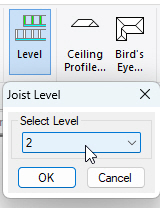
If I edit the depth of one set of ceiling joists, all the other ceiling joists adjust to the same depth. Can I avoid that?
Solution:
Ceiling framing and floor framing use a level setting to automatically adjust the depth of all entities using that level. You can use the Draw > Level command to box in a ceiling system and set it to a different level. This will allow you to set the ceiling system to a different depth.
English
SoftPlan | web3d | Featured Project
softplan.com/web3d/display_…
Created by Chrisha Potter and published with SoftPlan+.
Visit the complete web3d public gallery: softplan.com/web3d/web3d.php

English
Coming next week | SoftPlan Training | 3D Class
Link to sign up: softplan.com/?page_id=35
SoftPlan's 3D Rendering class will teach you the advanced skills you need to create beautiful, professional-looking 3D renderings. This class will be held March 24th - 27th.
SoftPlan’s live online training classes allow you to learn SoftPlan from the convenience of your own office. These content-rich webinars are taught by our knowledgeable training staff and are conducted using our newest version, SoftPlan 2026!

English
Tech Call of the Week:
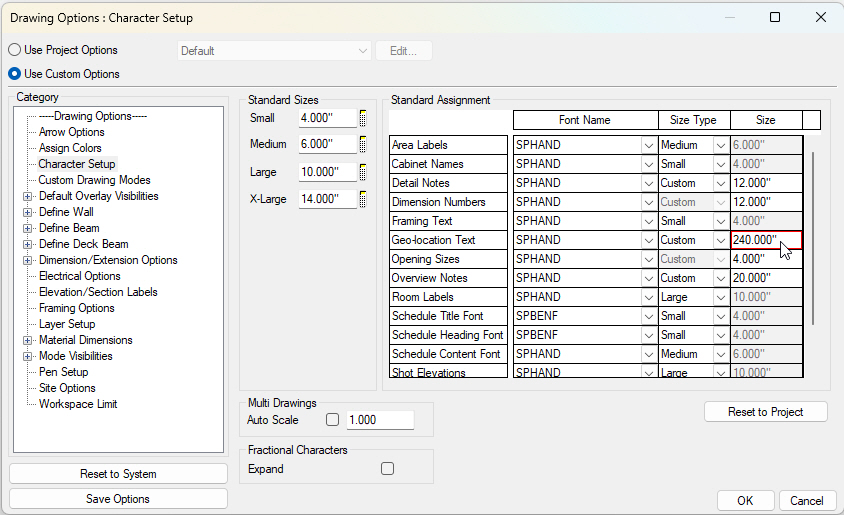
I am trying to set the Geo-location Point so I can import site elevation data from Google Maps, but I can't see the icon for the Geo-location Point to drag it where I need it. How do I find it?
Solution:
In the site plan drawing, select File > Drawing Options > Drawing Options > Character Setup and increase the size of the Geo-Location Text (I set it to 20ft). The Geo-Location Point was easily found once its font size was dramatically increased.
English
Tech Call of the Week:
How do I raise the Corner Board on one end of the wall?
Solution:
Edit the wall segment, select the Trim/End Options tab, and enable the End Treatment | Independent option. Modify the Top or Bottom Offset for the appropriate end of the wall. Wall ends will be labeled as Up/Down if the wall is drawn vertically, or Left/Right if the wall is drawn horizontally on the drawing.

English
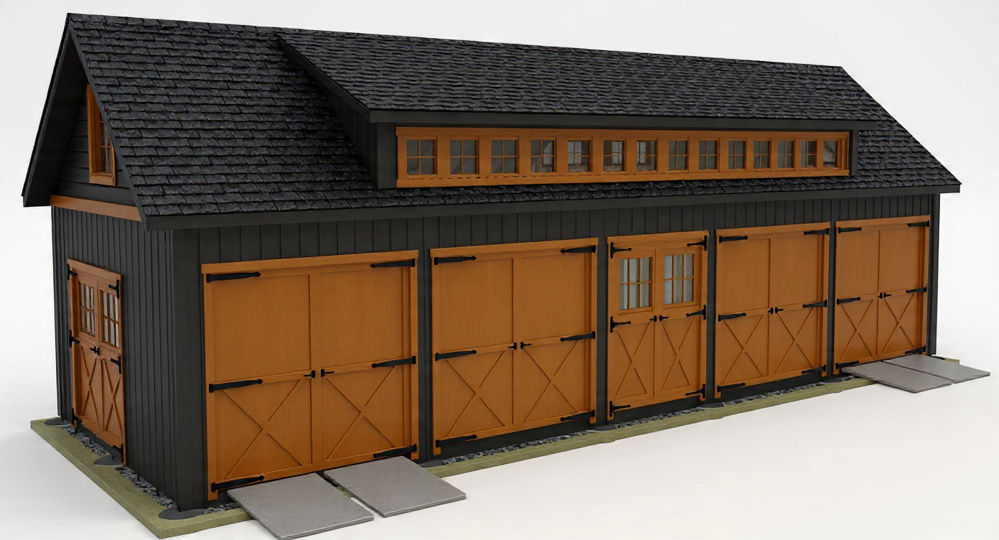
SoftPlan | web3d | Featured Project
softplan.com/web3d/display_…
Created by John Huyard and published with SoftPlan+.
Visit the complete web3d public gallery: softplan.com/web3d/web3d.php
English
Coming Next Week | SoftPlan Training | Roof Design Class
Link to sign up: softplan.com/?page_id=35
SoftPlan's Roof Design class will teach you the advanced skills you need to design beautiful roofs. This class will be held March 10th - 13th.
SoftPlan’s live online training classes allow you to learn SoftPlan from the convenience of your own office. These content-rich webinars are taught by our knowledgeable training staff and are conducted using our newest version, SoftPlan 2026!

English

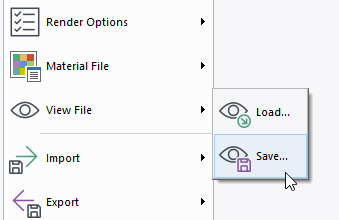
Coming Next Week | SoftPlan Training | SoftList Class
Link to sign up: softplan.com/?page_id=35
SoftPlan's SoftList class will teach you the advanced skills you need to create complete materials lists. This class will be held February 24th - 27th.
SoftPlan’s live online training classes allow you to learn SoftPlan from the convenience of your own office. These content-rich webinars are taught by our knowledgeable training staff and are conducted using our newest version, SoftPlan 2026!

English
Tech Call of the Week:
I’m having trouble getting a proper wall definition created. I needed to add a new material to the outside of the wall, but adding a new material always adds to the inside and then the offsets need to adjusted.
Solution:
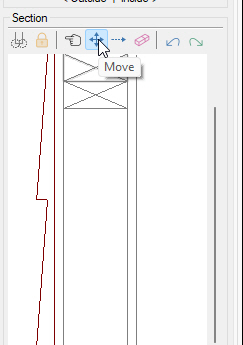
You can use the section view to move/adjust wall materials. You can easily add a new material and then just move it to the outside using the section view. This method is very easy, and a much better way of organizing the wall materials than trying to figure out horizontal and vertical starts.
English
SoftPlan | web3d | Featured Project
softplan.com/web3d/display_…
Created by Kenneth Maye and published with SoftPlan+.
Visit the complete web3d public gallery: softplan.com/web3d/web3d.php

English
Tech Call of the Week:
On my second floor roof plan, I only want to show beams supporting the roof. The floor beams at the ends of the second floor decks are showing up on this drawing. How do I turn them off?
Solution:
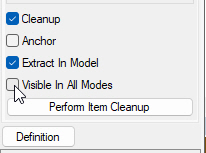
Edit those beams and disable the "Visible in All Modes" option in the Common tab. The beams will then only be visible in the mode they were drawn in.
English
Coming Next Week | SoftPlan Training | Intermediate Class
Link to sign up: softplan.com/?page_id=35
SoftPlan's Intermediate class will teach you the advanced skills you need to create complete custom house plans. This class will be held February 10th - 13th.
SoftPlan’s live online training classes allow you to learn SoftPlan from the convenience of your own office. These content-rich webinars are taught by our knowledgeable training staff and are conducted using our newest version, SoftPlan 2026!

English
Tech Call of the Week:
On the second floor, I want the exterior doors and windows to be black on the outside and off-white on the inside. How do I get this to display in the 3D Textured mode?
Solution:
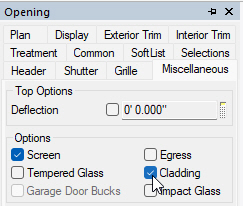
Edit the Opening, select the Miscellaneous tab, and enable 'Cladding.' Next, use the Repeat Edit command to make the same change to the other doors and windows. Finally, switch to the 3D view and Surface Edit as needed.
English