Wildcat Technologies

2.2K posts

Wildcat Technologies banner
Wildcat Technologies

Wildcat Technologies

@RHHS_Tech

Education for empowerment, Evaluation for effectiveness, and Support for ongoing implementation of educational technologies. ([email protected])

Richmond Hill, GA Katılım Temmuz 2016
552 Takip Edilen262 Takipçiler
Wildcat Technologies retweetledi

Tony Vincent
Tony Vincent@tonyvincent·
Recently published teacher-made apps: 🍦 Ice Cream Math Shop 🧭 Conflict Compass 🐄 Poo-tential Coordinates ⭐️ Volume Practice 🕰️ Tick Tock Time Machine teacherhive.app/buzz/GaY3bc7DI…
English
0
4
7
660
Wildcat Technologies retweetledi
Alice Keeler
Alice Keeler@alicekeeler·
🤖 Educator AI Assistant brings AI support right into your workflow. From generating lesson ideas to creating questions or organizing content, it helps save time while keeping lessons creative and aligned with your goals. You can use it to draft materials faster, brainstorm new approaches, or get alternative explanations for tricky topics, making planning smoother and more flexible. workspace.google.com/marketplace/ap… #GoogleEDU #GoogleWorkspace
Alice Keeler tweet media
English
0
1
1
417
Wildcat Technologies retweetledi
Tony Vincent
Tony Vincent@tonyvincent·
Tip Tuesday! Use Gemini Chat Starter to create a link to a prefilled Guided Learning prompt. go.apphive.us/start
English
2
3
7
591
Wildcat Technologies retweetledi
Eric Curts
Eric Curts@ericcurts·
My weekly #EdTech newsletter just went out - mailchi.mp/controlaltachi… 💎 Gems Webinar 📓 NotebookLM Webinar ⚽ PE Game Inventor 🗣️ CTE Client Simulator 🎯 Simple Slides 🎓 Transition Portfolio 📰 Google News ⏳ Time Travel App ✖️ Stand-up Maths 🎵 Lyria Song Maker 🚨 Factile
Eric Curts tweet media
English
1
4
15
790
Wildcat Technologies retweetledi
Tony Vincent
Tony Vincent@tonyvincent·
Tip Tuesday! Want Google search results without the AI Overview? Just add -ai to your query.
English
0
6
16
779
Wildcat Technologies retweetledi
Eric Curts
Eric Curts@ericcurts·
My weekly EdTech newsletter just went out - mailchi.mp/controlaltachi… 🆕 15 Updates to Make Google BETTer 💎 New EduGems ✖️ Exporting Math from Gemini to Google Docs 🤣 Learn & Laugh with Mr. Gaff 🧠 Brain Breaks 💻 VIZOR Chromebook Management #edtech #GoogleEDU
Eric Curts tweet media
English
0
2
7
626
Wildcat Technologies retweetledi
Eric Curts
Eric Curts@ericcurts·
🧞 Upcoming Webinar: Learning Genie controlaltachieve.com/2025/12/learni… 🧰 Create unit plans with all resources (plans, slides, worksheets, assessments, more) 🏫 Any subject & grade 📍 Localizes curriculum 💰 Robust free version 🗓️ Jan 21 @ 7pm ET ▶️ Live-streamed & recorded #edtech
Eric Curts tweet media
English
0
2
4
588
Wildcat Technologies retweetledi
Eric Curts
Eric Curts@ericcurts·
If you are attending #FETC be sure to check out the shared resource doc - bit.ly/fetc26-share 🎉 Mixers, events & meetups 🧑 Attendee Information 🗣️ Sessions 🍽️ Restaurants ✋ Questions 🧰 Learning Resources 💬 Other Comments #edtech @fetc
Eric Curts tweet media
English
1
7
12
1.1K
Wildcat Technologies retweetledi
Eric Curts
Eric Curts@ericcurts·
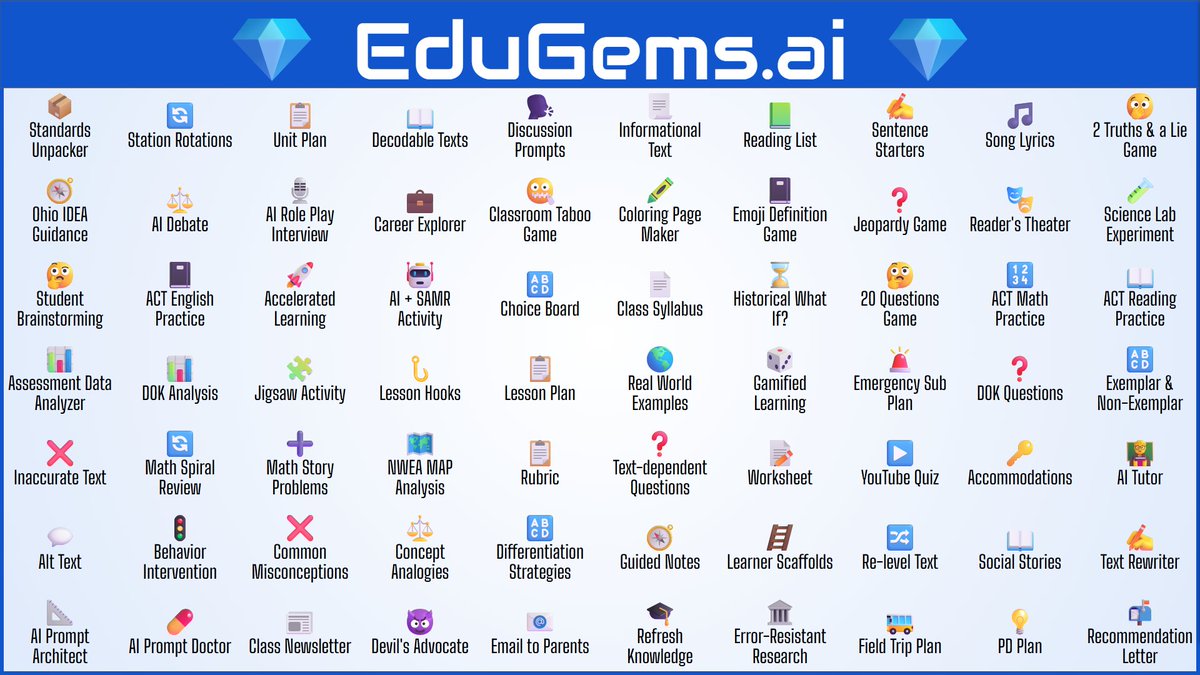
💎 70 Gems! edugems.ai There's now a total of 70 Gemini Gems on my EduGems site covering: 💡 Curriculum & Lesson Design 📖 Literacy & Language 🧒 Student Activities 💯 Assessment 🔑 Support 💼 Professional Tasks #edtech #GoogleEDU @GoogleForEdu @GeminiApp
Eric Curts tweet media
English
8
61
198
14.4K
Wildcat Technologies retweetledi
Global Statistics
Global Statistics@Globalstats11·
100 Useful Computer Shortcuts 🤏 1. F1 ➔ Help 2. F2 ➔ Rename 3. Ctrl + X ➔ Cut 4. F2 ➔ Edit cell 5. Ctrl + C ➔ Copy 6. Ctrl + Z ➔ Undo 7. Ctrl + Y ➔ Redo 8. Ctrl + S ➔ Save 9. Ctrl + F ➔ Find 10. Ctrl + B ➔ Bold 11. Ctrl + V ➔ Paste 12. Ctrl + P ➔ Print 13. F11 ➔ Full screen 14. Ctrl + I ➔ Italic 15. Alt + = ➔ AutoSum 16. Ctrl + H ➔ Replace 17. Ctrl + R ➔ Refresh 18. Ctrl + T ➔ New tab 19. Ctrl + H ➔ History 20. PrtScn ➔ Screenshot 21. Ctrl + O ➔ Open file 22. Ctrl + W ➔ Close tab 23. Ctrl + J ➔ Downloads 24. Ctrl + U ➔ Underline 25. Ctrl + A ➔ Select all 26. Ctrl + Tab ➔ Next tab 27. Ctrl + L ➔ Left align 28. Ctrl + R ➔ Right align 29. End ➔ Go to end of line 30. Ctrl + E ➔ Center align 31. Windows + S ➔ Search 32. Ctrl + ` ➔ Show formulas 33. Windows + I ➔ Settings 34. Ctrl + 1 ➔ Single spacing 35. Ctrl + 2 ➔ Double spacing 36. Ctrl + D ➔ Bookmark page 37. Ctrl + N ➔ New file/window 38. Home ➔ Go to start of line 39. Shift + Space ➔ Select row 40. Windows + Tab ➔ Task view 41. Windows + L ➔ Lock screen 42. F7 ➔ Spell check (MS Word) 43. Ctrl + M ➔ Indent paragraph 44. Ctrl + 5 ➔ 1.5 line spacing 45. Ctrl + K ➔ Insert hyperlink 46. Ctrl + Shift + L ➔ Bullet list 47. Windows + A ➔ Action center 48. Alt + Right Arrow ➔ Forward 49. Alt + D ➔ Select address bar 50. Ctrl + L ➔ Focus address bar 51. Windows + R ➔ Run dialog box 52. Ctrl + Space ➔ Select column 53. Windows + H ➔ Start dictation 54. Windows + K ➔ Connect devices 55. Alt + Space ➔ Open window menu 56. Alt + F4 ➔ Close current window 57. Windows + V ➔ Clipboard history 58. Shift + Arrow Keys ➔ Select text 59. Windows + E ➔ Open File Explorer 60. Ctrl + Mouse Scroll ➔ Zoom in/out 61. Ctrl + Shift + Tab ➔ Previous tab 62. Ctrl + "-" ➔ Delete selected cell 63. Windows + D ➔ Show/hide desktop 64. Ctrl + Shift + Esc ➔ Task Manager 65. Ctrl + N ➔ New folder (in Explorer) 66. Ctrl + Shift + "+" ➔ Insert new cell 67. Shift + Delete ➔ Permanently delete 68. Ctrl + Shift + > ➔ Increase font size 69. Ctrl + Shift + < ➔ Decrease font size 70. Ctrl + Shift + N ➔ Create new folder 71. Ctrl + Shift + T ➔ Reopen closed tab 72. Windows + M ➔ Minimize all windows 73. Ctrl + Up Arrow ➔ Move paragraph up 74. Windows + U ➔ Ease of Access Center 75. Windows + Pause/Break ➔ System info 76. Ctrl + Page Up/Down ➔ Switch sheets 77. Windows + Shift + S ➔ Snip & Sketch 78. Alt + Tab ➔ Switch between open apps 79. F5 ➔ Refresh (also works in browsers) 80. Ctrl + Arrow Keys ➔ Move to cell edge 81. Ctrl + Alt + Delete ➔ Security options 82. Ctrl + Enter ➔ Enter in all selected cells 83. Ctrl + D ➔ Delete item (to Recycle Bin) 84. Ctrl + Shift + Esc ➔ Open Task Manager 85. Ctrl + Q ➔ Remove paragraph formatting 86. Alt + Enter ➔ Properties of selected item 87. Windows + Up Arrow ➔ Maximize window 88. Ctrl + Down Arrow ➔ Move paragraph down 89. Windows + Left Arrow ➔ Snap window left 90. Windows + Right Arrow ➔ Snap window right 91. F12 ➔ Save As (Word/Browsers - Dev Tools) 92. Windows + Down Arrow ➔ Minimize window 93. Ctrl + Shift + N ➔ Incognito mode (browser) 94. Alt + Esc ➔ Cycle through open apps in order 95. Ctrl + Right Arrow ➔ Move cursor word forward 96. Ctrl + Left Arrow ➔ Move cursor word backward 97. Alt + Print Screen ➔ Screenshot active window 98. Alt + Left Arrow ➔ Back (browser/File Explorer) 99. Ctrl + Shift + Esc ➔ Open Task Manager directly 100. Ctrl + Shift + Arrow Keys ➔ Select word/paragraph 📌 If you enjoyed this, please consider Bookmarking it and sharing it with others. Also, don't forget to follow me for more content like this.
English
24
998
2.6K
185.4K
Wildcat Technologies retweetledi
Tony Vincent
Tony Vincent@tonyvincent·
Just in case you need some activities before break, I've collected things students can do in FigJam, Google Slides, Canva, Wayground, and Adobe Express. tonyv.me/holiday25 (Image generated with Gemini)
Tony Vincent tweet media
English
0
16
40
4.1K
Wildcat Technologies retweetledi
Jessica Adams
Jessica Adams@jessicaradams·
❄️🎄🎁 Happy Day 11 of Tech-mas! Create your perfect background sound with Moodist! With 84 sounds to combine, you'll never run out of options. I 💗the cozy combo of Campfire, Howling Wind, & Cat Purring. What's your favorite? ➡️Try it here: moodist.mvze.net #techmas
Jessica Adams tweet media
English
2
2
3
194