MarginNoteApp

409 posts

MarginNoteApp banner
MarginNoteApp

MarginNoteApp

@MarginNoteApp

MarginNote 4 - Smarter way to annotate on page margins, capture and organize in mindmap. All of your data is ready for the theme in one place!

App Store Присоединился Eylül 2013
533 Подписки2.5K Подписчики
Закреплённый твит
MarginNoteApp
MarginNoteApp@MarginNoteApp·
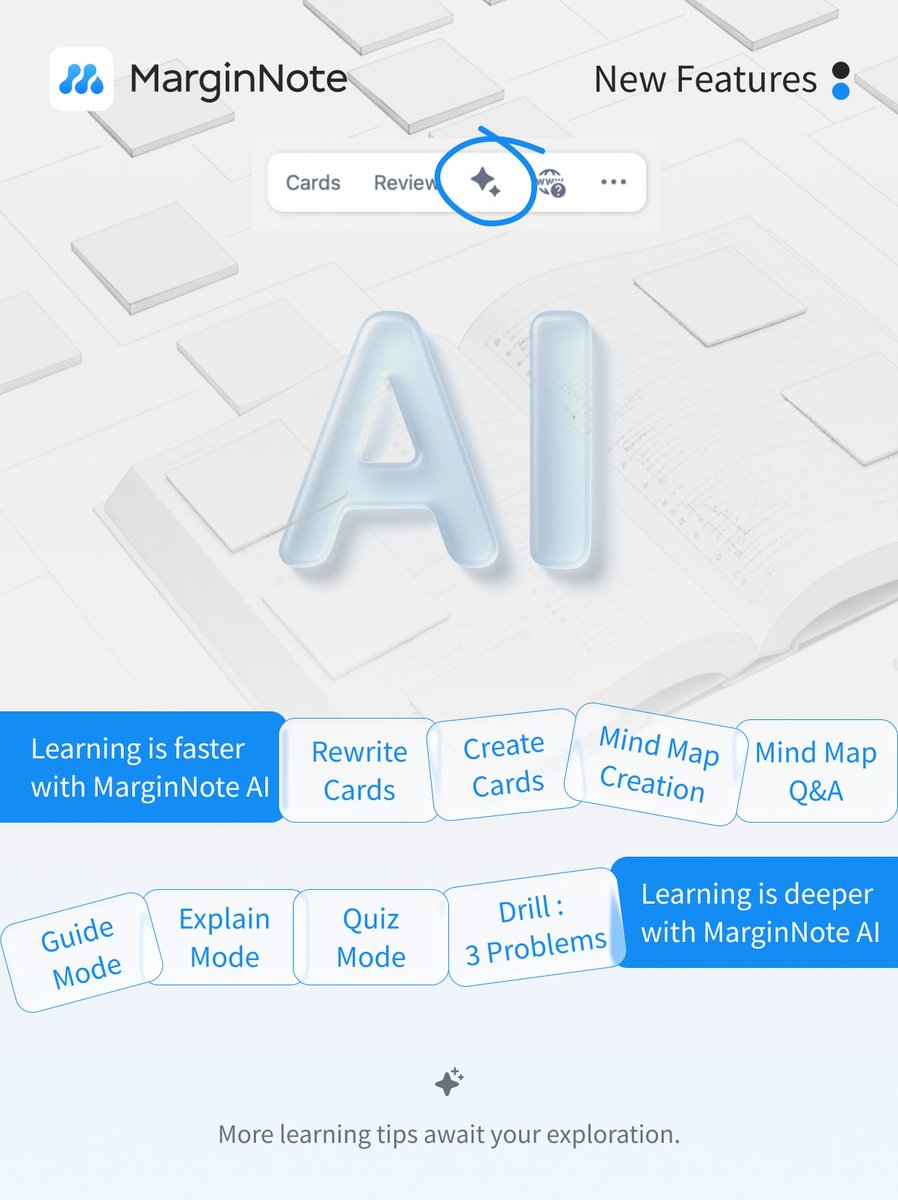
💡 Smartly Reinvented, Sincerely Crafted — MarginNote AI Has Arrived 🚀 More than Answers — It Executes Introducing the all-new MarginNote AI, a next-generation upgrade that covers 15 core features across the document, mind map, and review workflows. By turning each process into programmable micro-tasks, MarginNote AI helps you learn smarter, faster, and with greater precision. ✨ What’s New in Version 4.2.0 (AI Edition) 📘 Document Mode - Build an AI-generated Table of Contents for your entire PDF - Ask questions across the whole document - Auto-excerpt key information intelligently 🧠 Mind Map Mode - Generate a knowledge network with only one tap - Create child mind maps and rearrange branches freely - Visualize your learning process like never before 🗂 Flashcard Mode - Rewrite titles, create cloze exercises, and batch polish cards effortlessly - Convert handwriting and formulas into clean, full-text Markdown 🎁 AI Welcome Package 💎 For all existing users Upgrade to v4.2.0 or later to instantly receive 300 AI credits — permanently valid, with full access to all AI features. 🌟 For Max users Upgrade to v4.2.0 or later and enjoy a monthly 300-credit allowance: - Max Lifetime Users: 300 AI credits/month for three consecutive years after first AI use - Max Subscription Users: 300 AI credits/month during your active subscription (Check or manage your AI credits: MarginNote 4 → Settings → AI Credits) 🔧 Smarter Workflows, Stronger Knowledge Flow This update enhances AI capabilities and streamlines the entire knowledge flow — from reading and thinking to review and memorization. We invite you to share your feedback via the community or email — let MarginNote AI become your ultimate intelligent learning assistant. - MarginNote International Community: forum.marginnote.com - Customer Support Email: service@marginnote.com
MarginNoteApp tweet media
English
3
2
3
706
MarginNoteApp
MarginNoteApp@MarginNoteApp·
Adjust Page Order After Reorganization Edit PDF Page Order Virtual pages created from TOC items, Thumbnails, Bookmarks, or Annotations can be further rearranged using Edit PDF Pages to modify the page order.
GIF
English
0
0
0
150
MarginNoteApp
MarginNoteApp@MarginNoteApp·
Cross-Document Reorganization Drag Document Tabs to Reorganize Across Documents To virtually merge documents, just drag one document tab onto another. You can either append it to the end of that document or create a new merged virtual document.
GIF
English
0
0
0
146
MarginNoteApp
MarginNoteApp@MarginNoteApp·
Reorganize by Selected Region Use the Hand Tool to Select Regions Use the hand tool to precisely select text or regions on a page. Drag the selected region to the tab bar to reorganize pages (Append / Create New).
GIF
English
0
0
0
137
MarginNoteApp
MarginNoteApp@MarginNoteApp·
Reorganize via Bookmarks / Annotations Drag Bookmarks / Annotations to the Tab Bar Similar to thumbnails: switch to Bookmarks or Annotations view, long press the target page or annotation region, then drag it to the tab bar to reorganize pages (Append / Create New).
GIF
English
0
0
0
123
MarginNoteApp
MarginNoteApp@MarginNoteApp·
Reorganize via Thumbnails Drag Thumbnails to the Tab Bar Switch to Thumbnails view, long press the desired page, then drag it onto another document tab or the New Document button to reorganize pages (Append / Create New).
English
0
0
0
134
MarginNoteApp
MarginNoteApp@MarginNoteApp·
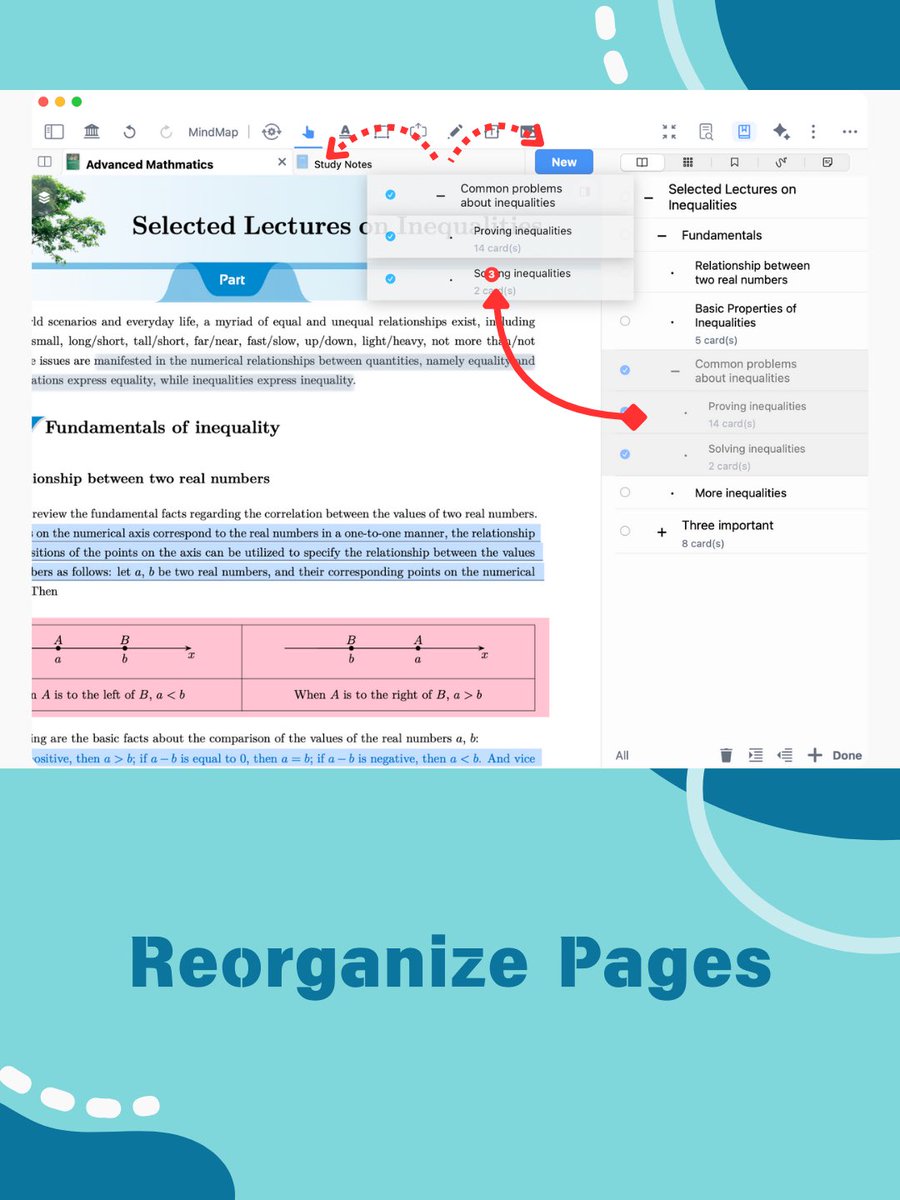
Reorganize via Table of Contents ② Reorganize Multiple TOC Items Tap the Edit button in the TOC view, select multiple items, then drag them to the blue New Document button in the tab bar. A new virtual document will be created automatically based on your selected TOC items.
GIF
English
0
0
0
117
MarginNoteApp
MarginNoteApp@MarginNoteApp·
Reorganize via Table of Contents ① Drag a Single TOC Item Open the Table of Contents view. Long press a TOC item and drag it onto another document’s tab in the tab bar to append all pages under that TOC item to the target document.
GIF
English
0
0
0
165
MarginNoteApp
MarginNoteApp@MarginNoteApp·
Pre-Reorganization Setup Enable the Document Tab Bar To virtually split and reorganize the document, first enable Document Tabs (or use shortcut ⇧+H) to open the document workspace tab bar.
GIF
English
0
0
1
125
MarginNoteApp
MarginNoteApp@MarginNoteApp·
🌟 Virtual documents created via Reorganization will not display previous margin notes—they will be saved as excerpts or cards inside the card grouping board. ⚠️ In MarginNote 4, page reorganization is performed virtually based on the source PDF. Do not delete the source document to avoid ⛓️‍💥 broken links or blank pages.
English
0
0
0
141
MarginNoteApp
MarginNoteApp@MarginNoteApp·
Table-of-Contents Folding & Page Reorganization — Reorganize Pages ✨ Powered by PDF tab pages and virtualization, you can drag and drop Table of Contents items, Thumbnails, Bookmarks, Annotations, or selected regions to assemble virtual pages—allowing you to freely reorganize document content and build your own personalized study set.
MarginNoteApp tweet media
English
2
0
0
158
MarginNoteApp
MarginNoteApp@MarginNoteApp·
🛠️ Two ways to virtually reorganize pages (Append / Create New), neither will affect the source document or annotation data. 🔚 Append Document: Append pages to the end of the target document via reference. 🆕 Create New Document: Create a new virtual document.
English
0
0
0
68
MarginNoteApp
MarginNoteApp@MarginNoteApp·
How to Adjust the Folded Range? 2. Refold After Adjustment After adjusting the fold range, simply tap the icon on the right side of the dividing line. From the pop-up menu, select Collapse to fold the newly adjusted area.
GIF
English
0
0
5
447
MarginNoteApp
MarginNoteApp@MarginNoteApp·
How to Adjust the Folded Range? 1. Unfold and Drag Edges Click the ↕ Expand button to open the collapsed content. Long press the icon to select the folded top/bottom edge until the dotted line turns blue, then drag to adjust the range.
GIF
English
0
1
1
286
MarginNoteApp
MarginNoteApp@MarginNoteApp·
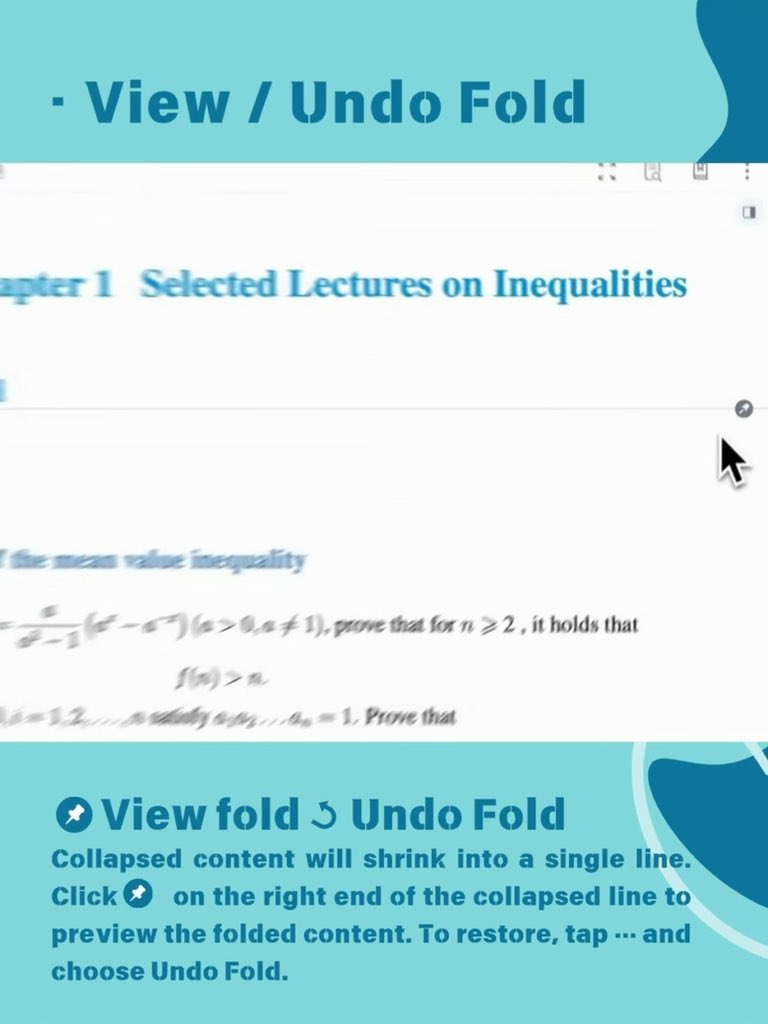
View / Undo Fold Collapsed content will shrink into a single line. Click the icon on the right end of the collapsed line to preview the folded content. To restore, tap … and choose Undo Fold.
MarginNoteApp tweet media
English
0
0
0
325
MarginNoteApp
MarginNoteApp@MarginNoteApp·
Folding Methods 3. Split & Fold Long press anywhere on the document page and choose Split & Fold from the pop-up menu. This allows you to collapse content above or below the dividing line with one click, or fold the middle part by dragging.
GIF
English
0
0
0
257
MarginNoteApp
MarginNoteApp@MarginNoteApp·
Folding Methods 2. Fold with Hand Tool Use the hand tool to select the text or area to be collapsed. From the pop-up menu, choose Fold to manually fold the selected content.
GIF
English
0
0
1
225
MarginNoteApp
MarginNoteApp@MarginNoteApp·
Folding Methods 1. Fold by TOC Switch to the collapse view in the Table of Contents. If the document contains TOC items, clicking the toggle icon allows you to show or hide sections. When collapsing a parent item, all its sub-items will automatically collapse as well.
GIF
English
0
0
1
257
MarginNoteApp
MarginNoteApp@MarginNoteApp·
Applicable Scenarios Unlike extend note features like “leave blank,” collapse pages is a tool to streamline your study materials. Learners can hide less important chapters and paragraphs by collapsing them based on the Table of Contents, helping to extract key points and simplify complexity. They can also manually segment and fold sections such as formula derivations, exercise answers, or detailed explanations to facilitate focused review and practice later.
MarginNoteApp tweet media
English
0
0
1
260