
Brandon (CAD Intentions)

6K posts

Brandon (CAD Intentions) banner
Brandon (CAD Intentions)

Brandon (CAD Intentions)

@cadintentions

CAD Tips, #Design, Remote Work, Tech & Productivity #ExpertElite 👉 AutoCAD Course/Templates https://t.co/Py6PgNQuQ4 ✉Free Newsletter: https://t.co/fqX2i5OfrQ

Kamloops, BC, Canada Katılım Ağustos 2011
676 Takip Edilen2.3K Takipçiler
Sabitlenmiş Tweet
Brandon (CAD Intentions)
Brandon (CAD Intentions)@cadintentions·
Five #AutoCAD commands to help clean up drawings: Purge - remove unused layers, styles, blocks etc Audit - check/fix DWG for errors Overkill - remove multiples & overlapped objects Laydel - Delete occupied/stubborn layers Wblock - declutter by creating separate dwg with objects
English
14
43
252
23.9K
Brandon (CAD Intentions)
Brandon (CAD Intentions)@cadintentions·
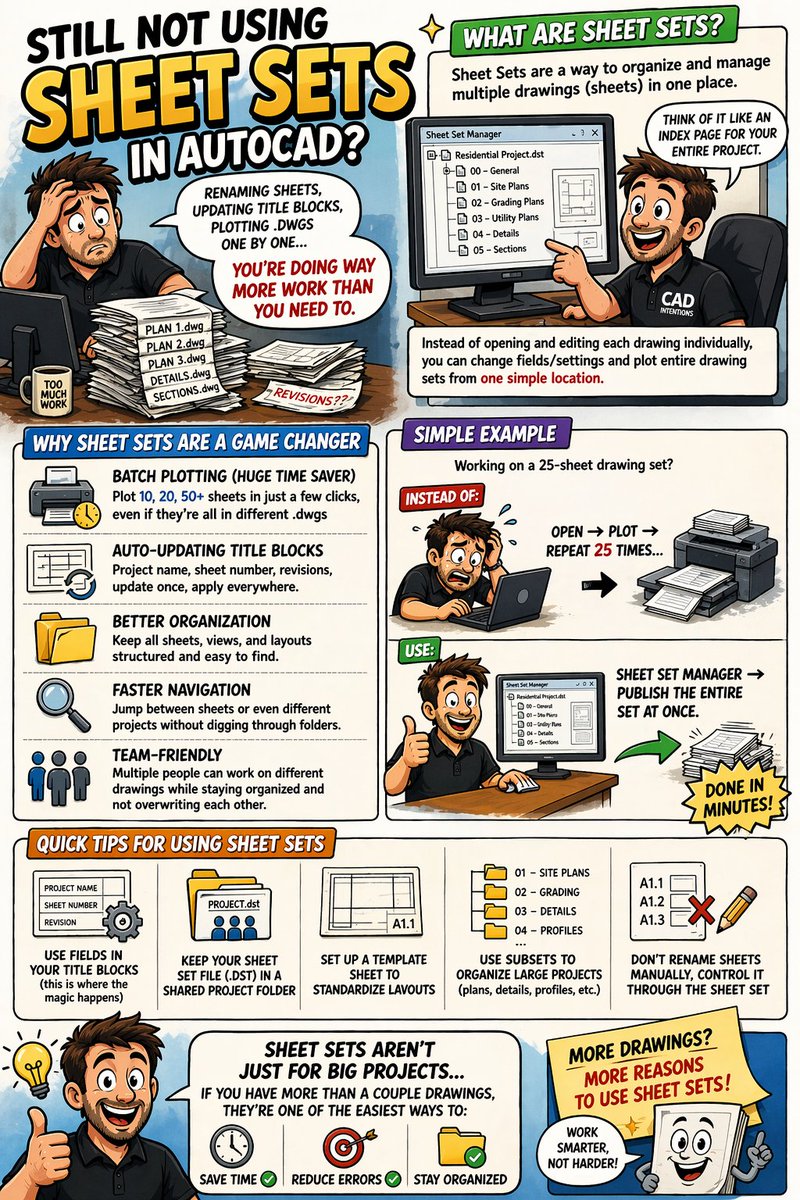
Still Not Using Sheet Sets in AutoCAD? If you’re managing multiple drawings manually… Renaming sheets, updating title blocks, plotting .dwgs one by one… You’re doing way more work than you need to. What are Sheet Sets? Sheet Sets are a way to organize and manage multiple drawings (sheets) in one place. Think of it like: An Index Page for your entire project. Instead of opening and editing each drawing individually, you can change fields/settings and plot entire drawing sets from one simple location. Why Sheet Sets are a game changer Batch Plotting (Huge Time Saver) Plot 10, 20, 50+ sheets in just a few clicks, even if they're all in different .dwgs Auto-Updating Title Blocks Project name, sheet number, revisions, update once, apply everywhere. Better Organization Keep all sheets, views, and layouts structured and easy to find Faster Navigation Jump between sheets or even different Projects without digging through folders Team-Friendly Multiple people can work on different drawings while staying organized and not overwriting each other Simple Example Working on a 25-sheet drawing set? Instead of: Open → Plot → Repeat 25 times… Use Sheet Set Manager → publish the entire set at once. Done in minutes. Quick Tips for Using Sheet Sets: Use fields in your title blocks (this is where the magic happens) Keep your sheet set file (.dst) in a shared project folder Set up a template sheet to standardize layouts Use subsets to organize large projects (plans, details, profiles, etc.) Don’t rename sheets manually, control it through the sheet set Sheet Sets aren’t just for big projects… If you have more than a couple drawings, they’re one of the easiest ways to: Save time Reduce errors Stay organized Are you using sheetsets yet? My AutoCAD Fundamentals & Workflows course has a section all about Sheet Set basics, if you want to start now check it out here: cadintentions.com/hurry
Brandon (CAD Intentions) tweet media
English
0
0
0
13
Brandon (CAD Intentions)
Brandon (CAD Intentions)@cadintentions·
Still Not Using Xrefs in AutoCAD? If you’re copying drawings into other drawings… You’re making life harder than it needs to be. Let’s simplify it: What are Xrefs? Xrefs (External References) are drawings you link into your current file instead of copying them. Think of it like this: One master file Referenced into multiple drawings Instead of duplicating everything over and over. Why Xrefs are a game changer: ✔ Automatic Updates Change the original file → it updates everywhere it’s referenced ✔ Better Teamwork Multiple people can work on different files at the same time ✔ Cleaner Files No bloated drawings from copying/pasting everything ✔ More Control Turn layers on/off, adjust visibility, and customize per drawing ✔ No Risk to Originals You can reference and work around files without modifying them imple Example: Survey base plan → Xref into design drawing Architectural background → Xref into multiple sheets Update it once… Every drawing stays current. Quick Tips for Using Xrefs Keep Xrefs in a clear folder structure (huge for teams) Use relative paths (avoids broken references) Bind only when absolutely necessary Use LAYISO / layer filters to control visibility Don’t explode or edit Xrefs directly, keep them clean Bottom Line Xrefs aren’t advanced… But they’re one of the biggest upgrades you can make to your workflow. Less rework Better collaboration Faster updates Do you need help understanding and getting started with Xrefs in AutoCAD? What about Templates, Layers, Annotative Text and more? Check out my AutoCAD Fundamental & Workflows Course here: cadintentions.com/hurry Quick question: Are you currently using Xrefs in your workflow? Let me know, I might do a full breakdown/tutorial on this next.
Brandon (CAD Intentions) tweet media
English
0
0
1
53
Brandon (CAD Intentions)
Brandon (CAD Intentions)@cadintentions·
Quick update on the upcoming 6-Week CAD Production Cohort/Training… I’ve been going through applications and speaking with a number of you over the past few days and have about 3 more of you to talk to later this week! :) We’re down to the final few days to apply for this first run of the 6-Week CAD Production System. And at this point, most of the conversations are reassuringly similar. It’s not really a question of if this would help… It’s more: "We know we need better Systems and templates, it's costing us time every time we start a new project!" Because the reality is: Nothing changes unless our actualy system changes. The same inefficiencies, rework, and time loss will still be there next month… and the month after that. The Owners, Managers and Firms that have already applied or joined didn’t necessarily have “perfect timing”… They just know they don't want to keep dealing with the same issues any longer. It's costing them time and money... Where things stand: First cohort is going to be limited to 6 firms I've reached out to the applicants who have been a good fit for the program and we've started booking/having Calls to discuss goals and get them signed up. I’ll be closing applications once the remaining spots are filled, in the next few days! Quick reminder of what we’re doing: Over 6 weeks, we’re implementing a complete CAD production system across your team: Templates, title blocks, and drawing setup Civil/Architectural Layers and reusable content Teaching how to Setup your own Styles, Sheetsets, & Standards File structure and project organization Templates and Cheatsheets QA/QC and workflow systems Develop a CAD Standard Document for reference and onboarding This is hands-on, practical, and based on real systems I’ve implemented with firms before, taugh in a done with you format. You'll learn the skills and methods to create, maintain, and update these standards for your own company and useage. . If you want to secure one of the remaining spots: Apply here to book a call/talk to me about your goals and the program: forms.gle/TpWqftssYWbmxg… Or if you already know this is a fit: Reserve your spot here before they fill up: cadintentions.gumroad.com/l/cadstandards I’ll be wrapping up applications shortly and finalizing the group. If drawing templates, standards, and general CAD organization has been on your list to fix for a while… This is your window to get professional help and the training to implement better standards properly. If you have any questions at all just hit comment or apply and we can chat soon! Cheers and happy drafting Brandon
Brandon (CAD Intentions) tweet media
English
0
0
0
67
Brandon (CAD Intentions)
Brandon (CAD Intentions)@cadintentions·
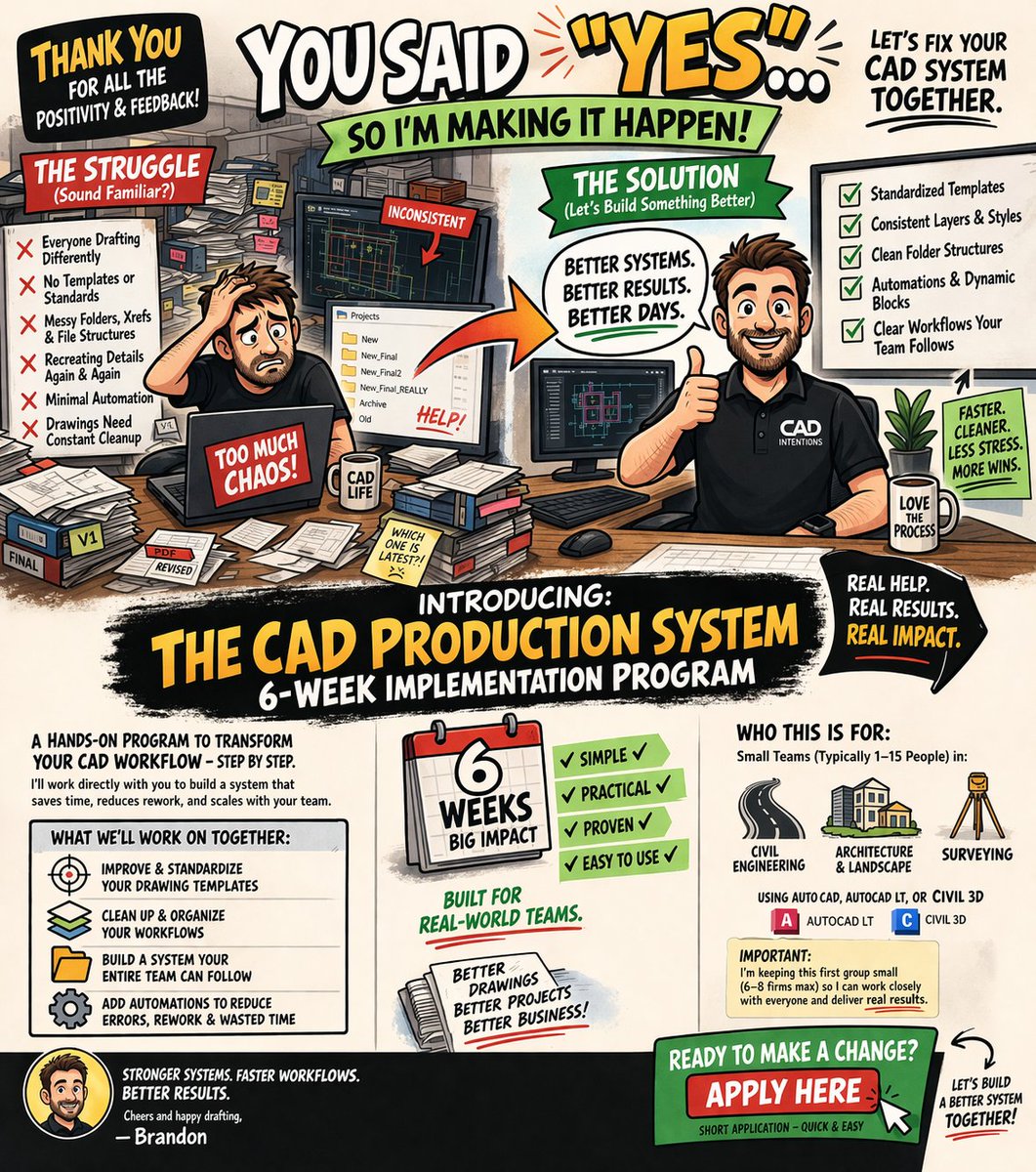
Thank you all for the positive responses and feedback, I had a lot of you like the last post and comment on youtube, and a ton reach out in my emails and dms. And honestly, none of the responses surprised me. It was the same issues I’ve seen over and over again working with smaller civil, architectural, and survey teams: Everyone drafting a bit differently No real template or standards in place Messy folders, Xrefs, and file structures Recreating the same details again and again Minimal Automation Drawings needing constant cleanup before sending out Not a skill problem. A system and standards problem. And the frustrating part is… most teams just live with it because fixing it feels like a huge job that takes a ton of employee time. The good news is: This is actually much easier to fix than most people think, when you approach it the right way and know exactly what works from years of experience. Over the past few years, I’ve helped a number of firms clean this up by putting a simple system in place: Standardized templates Consistent layers and styles Clean project folder structures Automations and Dynamic Blocks Clear workflows the entire team follows Nothing overly complicated or difficult to use, just an improved workflow and some template upgrades. And once it’s in place, everything gets faster almost immediately. Thanks to the responses and having just finished doing this exact thing with two firms last month, I’ve decided to open this up for a small group and help a handful of firms implement this step-by-step. What this is: A 6-week CAD Production System implementation program where I’ll work directly with you to: Improve & Standardize your drawing templates Clean up and organize your workflows Build a Standard/System your entire team can actually follow Eliminate a lot of the wasted time in your current process with Automations that reduce errors and rework This isn’t a course or generic training. It’s hands-on implementation and specific training based on real standards/systems I’ve built for firms before. Who this is for: Small teams (typically 1–15 people) in: Civil Engineering Architecture / Landscape Surveying Using either AutoCAD, AutoCAD LT, or Civil 3D. Important: I’m keeping this first group small (6–8 firms max) so I can work closely with everyone. If you’re interested: I’ve opened up a short application here: forms.gle/L8N9Z3BDBbJAGf… This will ensure its a perfect fit for both of us and make sure we can genuinely save you hours every week in your Drawing Production! Once I review the applications, I’ll follow up with next steps (and we can jump on a quick call to chat details). If you’ve been meaning to fix your CAD workflow for a while… This will be the fastest way to actually get it done with minimal impact to your current workload or team. Cheers and happy drafting Brandon
Brandon (CAD Intentions) tweet media
English
0
1
1
135
Brandon (CAD Intentions) retweetledi
Brandon (CAD Intentions)
Brandon (CAD Intentions)@cadintentions·
8 Benefits of Using an AutoCAD Template (.DWT) One of the biggest productivity upgrades in AutoCAD isn’t a command… It’s starting every drawing from a well-built template. No looking for blocks, copying layers or making it up new every time. Drawings will be faster, cleaner and more consistent! A good template automates dozens of setup tasks so you can focus on designing instead of configuring right from the start. Here are 8 things your template can handle before you even start drawing 👇 1️⃣ Layers Already Set Up Your template can include all standard layers with: Colors Linetypes Lineweights Naming standards No more creating layers from scratch every project. 2️⃣ Plot Styles Ready to Go Your CTB or STB plot style can be saved directly in the template. This ensures: Lineweights plot correctly Colors translate properly Every sheet looks consistent No last-minute plotting surprises. 3️⃣ Layouts Prebuilt Templates can include ready-to-use layouts with: Correct paper sizes Typical Page setups Standard viewport configurations Open the drawing → drop in your model/xrefs → plot. 4️⃣ Title Blocks Already Inserted Your template can include: Title blocks Sheet information Revision areas This keeps every drawing consistent and saves time recreating them. 5️⃣ Text, Dimension & Leader Styles Styles control how annotations look. By storing them in the template you ensure: Consistent text sizes Clean dimensions Proper leader formatting No manual overrides needed. 6️⃣ Standard Blocks Ready to Use Templates can include commonly used blocks like: North arrows Section markers Symbols Callouts This keeps your drawings consistent and speeds up drafting. 7️⃣ Units & Drawing Settings Your template can lock in: Units Precision Object snap settings Annotation scale So every new drawing starts with the correct environment. 8️⃣ Company Standards Built-In Templates enforce consistency by including: Layer naming standards Plot settings Annotation rules This keeps drawings professional across projects and teams. Commands help you draw faster. Templates help you start smarter. When your template is dialed in, every drawing begins with the right setup, automatically, add in a few automations/attributes and you're saving hours every week! Do you currently start drawings from a template or a blank file? Need help learning how wtemplates work? Check out my AutoCAD Workflows course: cadintentions.com/hurry or Send me an email to set up a call to have me help setup your company's custom Templates! (brandon(at)cadintentions.com)
Brandon (CAD Intentions) tweet media
English
0
1
4
241
Brandon (CAD Intentions) retweetledi
Carlos Andrés Toro
Carlos Andrés Toro@cartorobull·
@cadintentions Totally true, for example the drawing settings in Civil 3D for labeling cross sections and profiles is something that takes a lot of time, and not having standards fora lot of process too
English
0
1
1
57
Brandon (CAD Intentions)
Brandon (CAD Intentions)@cadintentions·
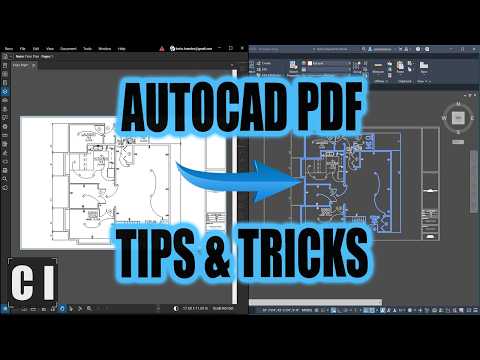
Master PDFs in AutoCAD and as a Markup Workflow in Today's New Video! In it, we walk through my workflows to create, import, and convert PDFs, without wasting time redrawing everything from scratch. youtube.com/watch?v=8chHiM… Learn: How to create clean, professional PDFs from your drawings The difference between PDFATTACH and PDFIMPORT When to convert PDFs to CAD (and when NOT to) How to clean up messy imports fast Real-world workflows like tracking markups, collaborating and more can save hours on every project If you work with consultant drawings, markups, or scanned plans, this is a must-know workflow. Once you understand how to handle PDFs properly, AutoCAD gets a lot faster. Watch now: youtube.com/watch?v=8chHiM… 👇 Let me know in the comments: Do you usually trace PDFs, import them, or avoid them altogether?
YouTube video
YouTube
English
0
0
3
110
Brandon (CAD Intentions)
Brandon (CAD Intentions)@cadintentions·
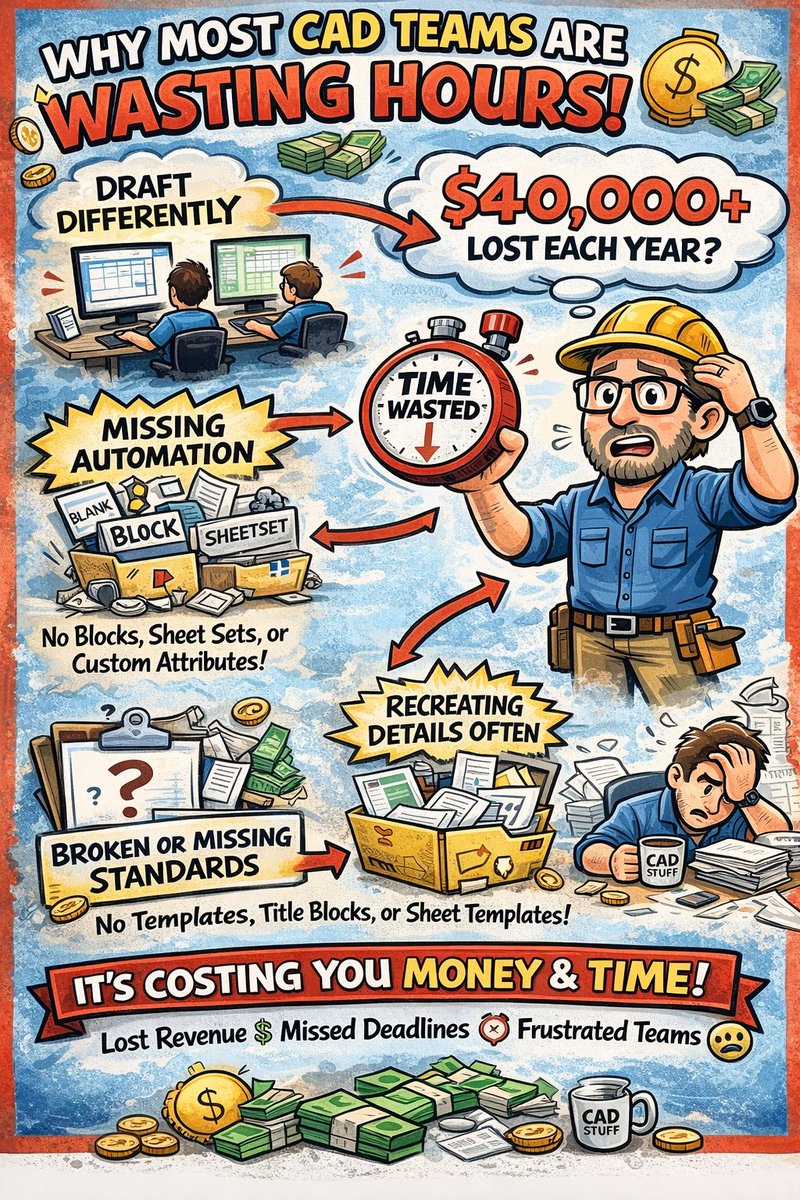
Most CAD teams are wasting hours every week… Over the past 20 years working in AutoCAD, Civil 3D, and real-world design projects… I’ve noticed something that shows up in almost every small firm I’ve consulted with. It's almost never a lack of skill. Not bad designers. It’s broken or non-existent systems. Things like: Everyone drafting slightly differently Little to no Automation (Not even Custom Attirbutes, Blocks, or Sheetsets!) Recreating the same details over and over Messy folders, Xrefs, and file structures Inconsistent title blocks, layouts, and plotting Spending way too long on things that should take minutes No Standards or Documentation on Workflows and Company guidelines It's hard to even catch these or realize internally just how much time you're losing because of it. We’re not talking about small inefficiencies either. For a single drafter, simply implementing a few of these workflows will save 30+ minutes a day! That's a minimum of $10,000+ wasted per year, for every drafter, designer, etc..... For a team of 4–6 people, it can easily add up to: 👉 10–15+ hours per week of wasted time! That's easily $40,000 in lost time because of incomplete/missing Standards, Templates, Blocks and Automations. That’s time and money that could be spent on: Billable work Delivering projects faster Reducing stress and rework Better Hardware & Profits Over the past few years, I’ve helped more than a dozen firms 1:1 fix this by building out simple, standardized CAD systems for their teams, .dwt templates, titleblock improvements, workflows, folder structures, documentation and production setups that actually make sense. And the difference is immediate. Faster drawings. Cleaner files. Less frustration across the team. Massive time savings when training up new employees I’m putting something together to help more firms implement this kind of system… But, I’m curious: Does any of this sound like something your team struggles with right now? Just comment below or DM me and let me know, even a quick “yes” or what your biggest frustration is. I read every reply, and will reach out to see if I can help you in the near future! Cheers & Happy Drafting! Brandon
Brandon (CAD Intentions) tweet media
English
1
0
2
113
Brandon (CAD Intentions)
Brandon (CAD Intentions)@cadintentions·
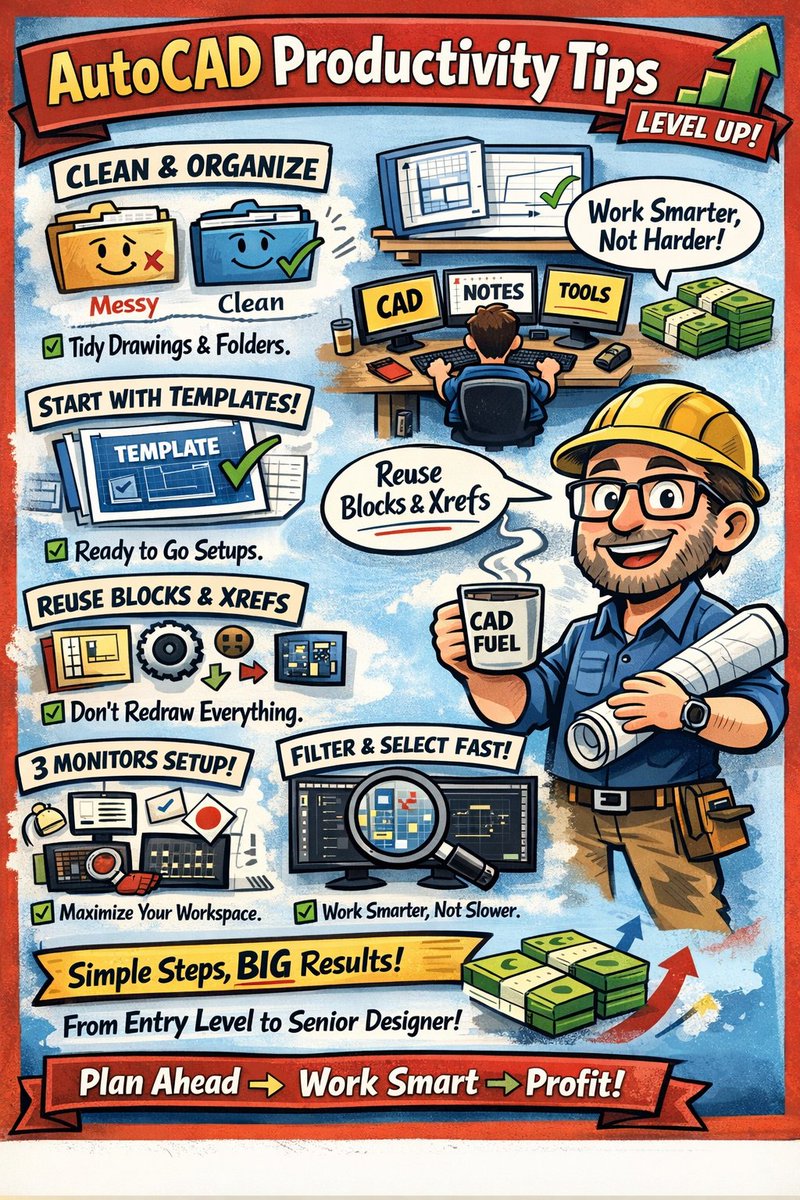
After 2 decades of working on real projects daily in AutoCAD, Civil 3D, GIS, and more… The biggest time-savers aren’t advanced tricks. They’re simple things most people skip: 1. Keep Drawings/Folders Clean & Organized. It doesn't hurt to spend a few minutes when you open a drawing/folder to clean things up. 2. Using templates properly! Starting every new drawing or figure from a well-set-up template will make a massive difference in the quality and speed of your drawing production. 3. Reusing content instead of recreating it. Take advantage of Blocks, Xrefs, Titleblocks and Templates. We should never be recreating basics from scratch in CAD. 4. Keeping markups organized and visible. Using 2 or 3 monitors is a game-changer. Having CAD open on one, markups/sketchs/backgrouund info on another, and ideally toolbars/palettes/explorer folders etc. on the third really makes everything flow smoother with less erros and headaches. 5. Using selection/filter tools instead of manual work. I almost never need to manually click more than one or two objects when working, learning quick commands, selection tricks, and knowing the exact next move makes for fast and streamlined work. It’s not about working harder in AutoCAD… It’s about removing unnecessary steps and truly understanding the software we use. Mastering just a few of these techniques and actively planning the next steps in a design is the difference between a drafter earning minimum/entry level wage and a senior designer earning SIX Figures easily. Want to learn how to properly setup Templates, Folders, Layers, Titleblocks, Xrefs, Text and More? Take my AutoCAD Fundamentals & Workflows Course Today: cadintentions.com/hurry 👇 What’s one thing you KNOW would save you time… but you still don’t do?
Brandon (CAD Intentions) tweet media
English
0
0
1
150
Brandon (CAD Intentions) retweetledi
Brandon (CAD Intentions)
Brandon (CAD Intentions)@cadintentions·
7 Lesser-Known AutoCAD Commands You Should Start Using Today Most people learn LINE, TRIM, OFFSET, maybe a few useful shortcuts… and stop there. But AutoCAD is full of small, underused commands that quietly save serious time — especially when things get messy. Here are 7 underrated commands that deserve more attention: 1️⃣ OVERKILL Cleans duplicate and overlapping geometry. Imported drawing a mess? Copied lines stacked on top of each other? Command: OVERKILL Removes duplicate lines Combines overlapping segments Cleans unnecessary geometry Perfect for: Cleaning Consultant drawings Old files Bloated models It’s basically “declutter mode.” Pair it with PURGE to really clean up a drawing! 2️⃣ LAYISO Isolate only the layers you want to see. Instead of manually freezing 20 layers… COMMAND: LAYISO Select objects Everything else fades or hides. Instant focus mode. Great for: Editing details Reviewing specific systems Cleaning up crowded plans 3️⃣ TXT2MTXT Combine multiple text objects into one. Inherited a drawing with 15 separate text lines pretending to be a paragraph? Type: TXT2MTXT It merges them into one clean MTEXT object. Cleaner. Easier to edit. More professional. 4️⃣ MATCHPROP (MA) With Settings Most people know MA… But fewer people adjust its settings. Command: MA (MATCHPROP) Then select a source object and hit S and enter to customize your settings! You can control exactly what properties transfer: Layer Linetype Scale Text style Lineweight Dial it in once and stop reformatting manually. 5️⃣ NCOPY Copy objects from an Xref without binding it. Need one line from a survey xref? Command: NCOPY Select the object inside the reference Copy it into your drawing No exploding. No binding. No chaos. 6️⃣ CHSPACE Move objects between Model and Layout space. Placed something in the wrong space? Command: CHSPACE Moves geometry between model and paper space Automatically adjusts scale This saves serious rework when layouts get messy. 7️⃣ QSELECT Select objects based on criteria. Need to find: All text of a certain height? All blocks named “TREE”? All objects on Layer A-WALL? Command: QSELECT Filter → Select → Done. It’s like a search engine for your drawing. You don’t need 500 commands. But knowing the right lesser-known ones can: Clean drawings faster Reduce rework Improve organization Save hours over time AutoCAD gets easier the more intentional you are. Which one of these are you already using, and which one was new to you? Newer to AutoCAD or just want to learn the most productive Workflows, Template Tricks, and more? Check out the Complete CAD Toolbox here: cadintentions.com/hurry
English
1
1
1
144
Brandon (CAD Intentions)
Brandon (CAD Intentions)@cadintentions·
10+ AutoCAD commands you should start using TODAY: OVERKILL → cleans duplicate geometry LAYISO → instant focus mode (Plus Quick Layer Tricks!!) QSELECT → search your drawing NCOPY → grab from Xrefs +6 more… These are small tools… but they each can save you BIG time. Watch the full video for them all here: youtu.be/jGQz_vtX5mY
YouTube video
YouTube
English
0
1
4
203
Brandon (CAD Intentions) retweetledi
Terrible Maps
Terrible Maps@TerribleMaps·
Artemis II launches today so I've mapped out the detailed flight path for those interested NASA won’t show you this level of detail
Terrible Maps tweet media
English
159
1.9K
44K
1.4M
Brandon (CAD Intentions)
Brandon (CAD Intentions)@cadintentions·
New video! Save hours every time your dealing with Drawing markups/redlines or reviewing any type of drawing sets with today's new video!! Learn the 3 simple workflows I use to speed up and automate drawing review, markups, and Takeoffs!! youtu.be/BWY0BscEI8o?si…
YouTube video
YouTube
English
0
0
2
137
Brandon (CAD Intentions) retweetledi
Brandon (CAD Intentions)
Brandon (CAD Intentions)@cadintentions·
3 Workflows to Drastically Improve Your AutoCAD Speed & Drawing Quality Most people try to get faster in AutoCAD by learning more commands. But the biggest improvements in speed and quality usually come from workflows, not tools. If you master these 3 systems, your drawings will immediately feel more organized, consistent, and professional 1️⃣ Start Every Drawing from a Proper Template A good .DWT template eliminates the setup work before you even start drafting. Your template should already include: Layers and standards Text, dimension, and multileader styles Title blocks and layouts Plot styles and page setups Units and scales Instead of setting everything up each time, you open the file and start designing immediately. Templates don’t just save time, they prevent mistakes and keep things looking consistent. 2️⃣ Use Xrefs to Prevent Rework One of the biggest productivity upgrades is linking drawings instead of copying them. Xrefs allow you to: Reference surveys, base plans, or backgrounds Update drawings automatically when the source file changes Keep files smaller and more organized Have multiple users working on one project When used correctly, Xrefs eliminate one of the biggest time-wasters in CAD: re-copying and fixing outdated geometry. 3️⃣ Build a Consistant and Automated Layout & Plot Workflow ot of drawing issues show up at the very end, during plotting. Instead, set up layouts properly from the start: Use viewports at correct scales Lock viewport scales once set Use Fields and Attributes to simplify Project Info/Scales/Text etc... Check plot to PDF early and often Use lineweight hierarchy for clarity If your layout setup is predictable, your drawings become much easier to review, issue, and revise. Fast AutoCAD users aren’t faster because they rush. They’re faster because their workflow removes unnecessary decisions. When templates, Xrefs, and layouts are dialed in, everything else gets easier. If you need to Learn how to create AutoCAD Templates, Master Xrefs, Automated Titleblocks and more, Check out my AutoCAD Fundamentals & Workflows Course: cadintentions.com/hurry 👉 Which of these workflows made the biggest difference in your drawings?
Brandon (CAD Intentions) tweet media
English
1
2
3
158
Brandon (CAD Intentions)
Brandon (CAD Intentions)@cadintentions·
Organize Your AutoCAD Drawings Like a Pro If your drawing feels messy, slow, or hard to navigate… It's usually an issue with organization and setup. A well-structured drawing is easier to edit, review, and collaborate on. Here are a few simple systems that can dramatically streamline your AutoCAD workflow 👇 1️⃣ Use Layers Intentionally Layers are the foundation of drawing organization. Instead of throwing everything on a few generic layers, organize them by purpose: Walls Dimensions Annotations Centerlines Utilities Property lines Clear layer naming makes it easier to: Control visibility Manage plotting Find objects quickly 2️⃣ Create Layer Filters Large drawings can easily end up with 100+ layers. Layer filters help you group layers by category so they’re easier to manage. For example: Annotation layers Site layers Architectural layers Civil utilities Instead of scrolling endlessly through the layer list, filters let you focus only on what matters. 3️⃣ Use Xrefs for Background Drawings Instead of copying base drawings repeatedly, attach them as Xrefs. Xrefs allow you to: Reference surveys, base plans, and backgrounds Update drawings automatically when the source file changes Keep your drawing lighter and more organized They’re essential for multi-discipline projects. 4️⃣ Build a Block Library If you’re redrawing the same symbols every project, it’s time to create a block library. Examples include: Trees and landscaping symbols Furniture North arrows Section markers Detail callouts Once saved, they can be reused instantly across projects. 5️⃣ Create Custom Tool Palettes Tool palettes take your block library to the next level. You can store: Standard blocks Common hatches Detail symbols Notes and callouts Everything becomes one-click access instead of searching through folders. 6️⃣ Start From a Template Templates tie all of this together. A good template already includes: Layers Layouts Styles Plot settings Blocks So every new drawing starts organized from the beginning. Fast AutoCAD workflows aren’t just about commands. They’re about structure. When your drawings are organized properly: Editing becomes easier Collaboration improves And production speed increases dramatically. What’s the biggest organization challenge in your AutoCAD drawings right now? Need to learn how to master Layers, Setup Templates, Insert XRefs, and more? Check out my AutoCAD Fundamentals & Workflows Course: cadintentions.com
English
0
1
2
154
Brandon (CAD Intentions)
Brandon (CAD Intentions)@cadintentions·
AI → 3D Model → 3D Print or Render… What if you could turn a single image into a 3D model in minutes? I just tested a new AI tool called Hitem3D to see if it could actually generate usable 3D models… and then I tried 3D printing the result. Honestly… I was pretty impressed. Watch the full test here 👇 youtu.be/BBlL-AX5VoI Curious what you think, would you use something like this for concept models or quick prototypes? youtu.be/BBlL-AX5VoI
YouTube video
YouTube
English
0
1
2
319