

Freedom | Excel Boss
10.1K posts

@ObohX
Data Analyst & BI Consultant | Power BI • Excel + VBA & Macros | Building Custom Dashboards & Automation Solutions. 📩[email protected]


One of the biggest mindset shifts in Excel is understanding "Cell References" Most people learn formulas like: =SUM(B2:B10) …but don’t really understand *why* formulas behave differently when copied across rows and columns. That’s where Cell References come in. There are 3 major types: 📌 Relative Reference → `A1` 📌 Absolute Reference → `$A$1` 📌 Mixed Reference → `A$1` or `$A1` And understanding when to use each one changes everything. Relative Reference (`A1`) This changes automatically when copied. Example: If you copy: ```excel =A1+B1 ``` down one row, it becomes: ```excel =A2+B2 ``` Excel assumes you want the formula to move with the data. Best used for: ✔ Row-by-row calculations ✔ Totals ✔ Repetitive calculations across datasets Absolute Reference (`$A$1`) This locks both the row and the column. No matter where the formula is copied, the reference stays fixed. Example: ```excel =A2*$F$1 ``` If `$F$1` contains a tax rate or exchange rate, every calculation will always reference that exact cell. Best used for: ✔ Fixed rates ✔ Constants ✔ Parameters ✔ Tax/discount calculations Mixed Reference (`A$1` or `$A1`) This locks either: * the row or * the column but not both. Example: `A$1` → Row is locked → Column can change `$A1` → Column is locked → Row can change This becomes extremely useful in: ✔ Dynamic tables ✔ Matrix calculations ✔ Forecast models ✔ Advanced reporting structures The interesting thing is this: Most Excel mistakes are not formula mistakes. They’re reference mistakes. People think Excel is “calculating wrong” when in reality the formula is pointing to the wrong cells after being copied. That’s why understanding references is such a major turning point. Once you understand how Excel thinks about references, formulas stop feeling random and start becoming predictable.


How much was your first ever Tech salary?

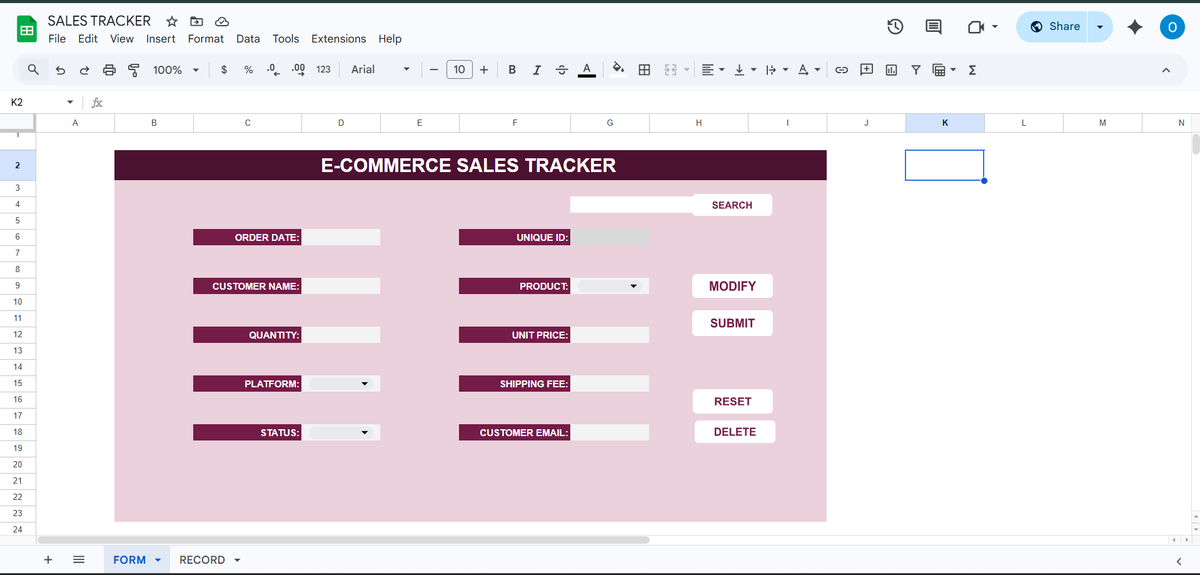
It’s a new season of EXCEL101 and Week 1 just wrapped up. And honestly? This cohort came ready. We started from the foundations: Workbook vs Worksheet, the Excel grid, Ribbon, Name Box, Formula Bar — the kind of things many people skip because they “already know Excel.” But foundations matter. One of the biggest moments this week was watching students realise the difference between: *what a cell displays * and what the Formula Bar actually contains. That tiny distinction alone explains a lot of spreadsheet confusion people struggle with for years. We also explored: Data Types, Cell References, Navigation Shortcuts, AutoFill & Flash Fill, Number Formatting, Data Validation, Conditional Formatting, Freeze Panes and Workbook Organisation Cell references especially decided to bring that to the first week Understanding the difference between: =A1 =A$1 =$A$1 …is one of those concepts that separates someone who *uses* Excel from someone who actually *understands* Excel. We also had a really good conversation comparing Excel vs Google Sheets, not from a “which is better?” perspective, but from a workflow perspective. A lot of students were surprised to see that the skills transfer directly across both platforms, especially those working in Google Workspace environments. Then came the assignment and Wednesday Class By @TheBoyAnalyst 🛒 **Retail Inventory & Sales Tracker** Students had to: * Build a tracker from scratch * Apply Data Validation * Use Conditional Formatting * Apply formulas * Submit in both Excel and Google Sheets * Write a short report explaining their process Because building something is one skill. Explaining your process clearly is another.


It’s a new season of EXCEL101 and Week 1 just wrapped up. And honestly? This cohort came ready. We started from the foundations: Workbook vs Worksheet, the Excel grid, Ribbon, Name Box, Formula Bar — the kind of things many people skip because they “already know Excel.” But foundations matter. One of the biggest moments this week was watching students realise the difference between: *what a cell displays * and what the Formula Bar actually contains. That tiny distinction alone explains a lot of spreadsheet confusion people struggle with for years. We also explored: Data Types, Cell References, Navigation Shortcuts, AutoFill & Flash Fill, Number Formatting, Data Validation, Conditional Formatting, Freeze Panes and Workbook Organisation Cell references especially decided to bring that to the first week Understanding the difference between: =A1 =A$1 =$A$1 …is one of those concepts that separates someone who *uses* Excel from someone who actually *understands* Excel. We also had a really good conversation comparing Excel vs Google Sheets, not from a “which is better?” perspective, but from a workflow perspective. A lot of students were surprised to see that the skills transfer directly across both platforms, especially those working in Google Workspace environments. Then came the assignment and Wednesday Class By @TheBoyAnalyst 🛒 **Retail Inventory & Sales Tracker** Students had to: * Build a tracker from scratch * Apply Data Validation * Use Conditional Formatting * Apply formulas * Submit in both Excel and Google Sheets * Write a short report explaining their process Because building something is one skill. Explaining your process clearly is another.