
And Rooh
449 posts









The most famous keyhole in Rome
Through the Aventine Keyhole, you’ll see a perfectly framed view of St. Peter’s Basilica, aligned through the beautiful gardens of the Priory of the Knights of Malta.
English



@mintzer101 @lyanruke I heard it too. Very unfortunate indeed. I’m sure she was incredibly nervous and stressed. No harm done.
English


@cadintentions If you can’t see it - after zoom extents. Do a crossing window to try an select everything. The grips should appear, (as a single grip sometimes). The you can zoom in on them.
English

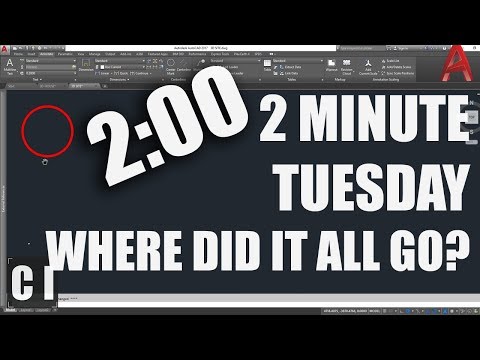
"Where did my objects go in #AutoCAD?"
Lost your drawing objects?
Don’t panic! Here’s how to find them:
Zoom Extents (Z Enter, E Enter) – Your objects might be off-screen or far from the origin.
Check Layers – Objects could be on a hidden, off, or frozen layer. Use LA to check the current layer and review your layer list.
Unisolate Objects – If layers were isolated, use LAYUNISO to restore them.
Check Object Properties – Select all (CTRL+A) and look at the properties palette (PR). The layer might be turned off.
Try Select All & Move (CTRL+A > Move) – Sometimes objects are way off in space. Move them closer to avoid losing things.
Check Blocks & Xrefs – Objects inside blocks or external references may not be visible due to layer settings.
Use AUDIT & RECOVER – Fix corrupt files that might be causing missing objects.
Still can’t find them? Turn on all layers, thaw frozen ones, and use ‘Select All’ to highlight any hidden surprises!
Check out this video to see how to fix issues when Zooming Extents/Missing Objects!
youtu.be/-2TvdEAS6BU?fe…
YouTube
English


@HoskoA Just to confirm before you move carriages; is the AC blowing hot air, or no air at all?
English
Howdy NSW 🤠 Alex and Beau are here for your Wednesday morning commute.
Flick us a DM or @ us for help with travel📲
English
@QuantumAlteredX I stopped for fresh lemonade a couple of weeks ago, whilst on a bike ride.👍
English


So our holiday neighbour is endlessly leaf blowing and gurneying for the second time since Xmas. Some people are just selfish fwits.
English
@T2SydneyTrains
Morning @T2SydneyTrains.
Why……on this webpage, under “Select a mode”……is there no option for “Train”
transportnsw.info/contact-us/rep…
?
English

@the_transit_guy I can’t wait to see the big inland rail freight trains using this same track in a few years. Think of what that’ll mean for all those other little towns. And what the future holds for them all.
English

A big part of being Productive in #AutoCAD comes from learning and memorizing quick commands, alias' and tricks to speed up everyday tasks.
These are just a FEW of my go-to's, be sure watch the video below and read the comments for more!
CTRL+1 - Opens Properties Menu
CTRL+2 - Opens Design Center (Look up my video on ADC if you don't know this one)
MA - Match Properties
E - Erase
PE - Polyline Edit
TR - Trim
BR - Break
DI - Distance
Purge - CLean drawings/remove unused objects/styles etc..
Esc - Cancels/exits command!
Space Bar - Enter, saves a ton of time!
Also, practically every alias'/command can be edited and you should be customizing your CAD to match the commands and type of work you do. Switch out any commonly used commands with lesser used alias to really up your PRODUCTIVITY GAME!
VIDEO: youtu.be/uNCzSTOu26Y?fe…
What are some of you favorite ALIAS swaps?
Like C to Copy, instead of Circle

YouTube
English